RGB lighting is one of the biggest reasons people invest in gaming keyboards, especially when building their own PC. So, when those lights suddenly stop working, it’s frustrating, especially if the keyboard itself still functions.
Luckily, most RGB lighting issues are software- or settings-related and can be fixed quickly. This guide walks through the most common issues with RGB keyboard lighting and how to fix RGB lights on your keyboard.
What Causes RGB Keyboard Lighting Issues?
Before jumping into fixes, it helps to understand what usually causes RGB lighting to fail.
In most cases, the problem falls into one of these categories:
Keyboard shortcuts that accidentally turned the lighting off
The RGB software is not running properly
Outdated or corrupted drivers
USB power or connection issues
Operating system or BIOS power settings
Firmware problems or hardware failure
Since RGB lighting can easily run into issues, on the bright side, there are plenty of resources to help you troubleshoot.
How to Fix RGB Lights on Keyboard: Quick Check
These are the fastest fixes and should always be your starting point when RGB keyboard lighting is suddenly not working.
Quick Check #1: The Keyboard Connection
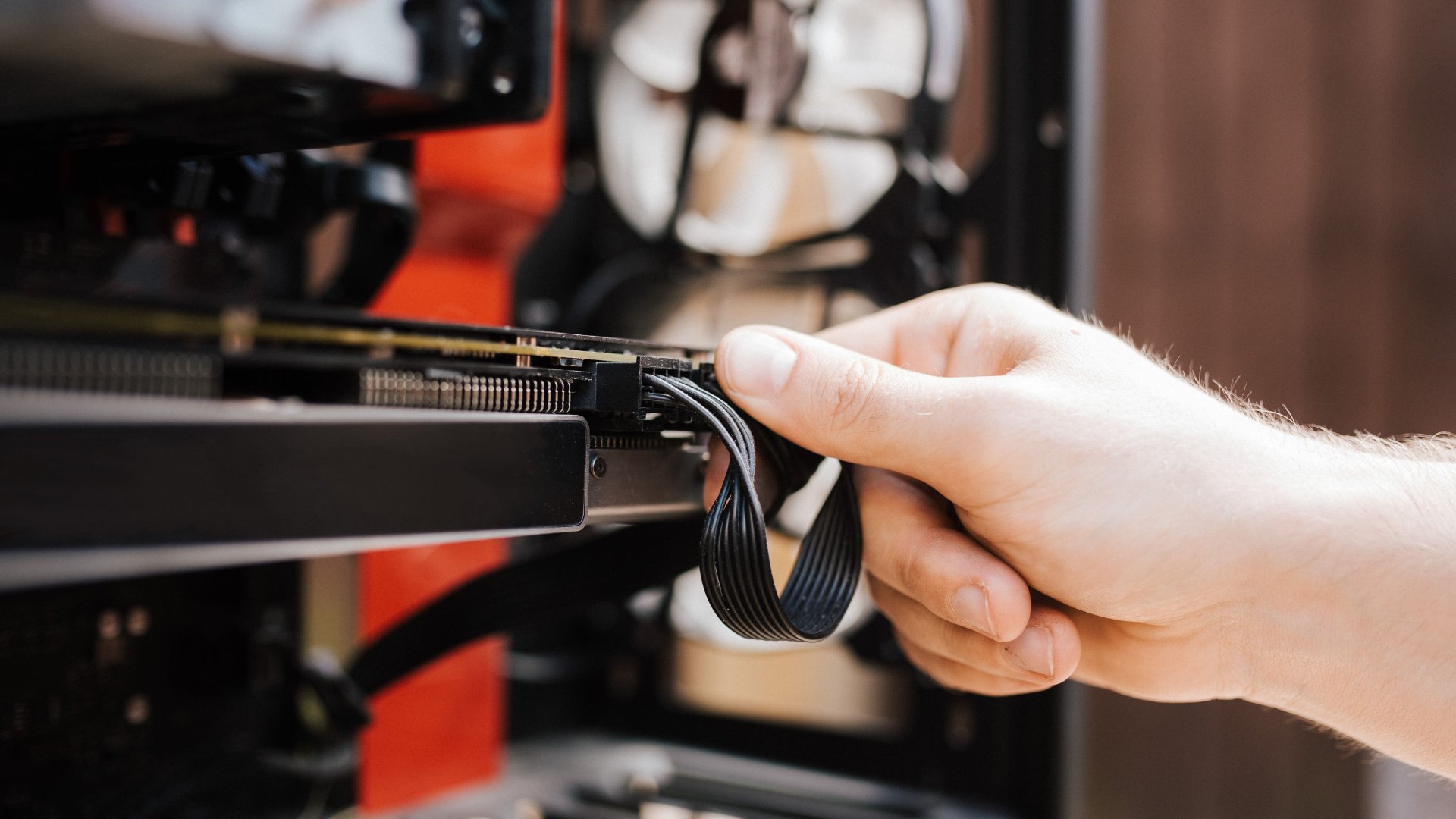
A loose or unstable connection can prevent RGB lighting from receiving power.
Try:
Unplugging the keyboard and reconnect it firmly
Using a different USB port, preferably one on the back of your PC
Avoiding USB hubs while troubleshooting
For wireless keyboards, check the battery level and reconnect the dongle
Sometimes RGB lighting draws more power than basic key input, so a weak connection can cause the lights to fail even if typing still works.
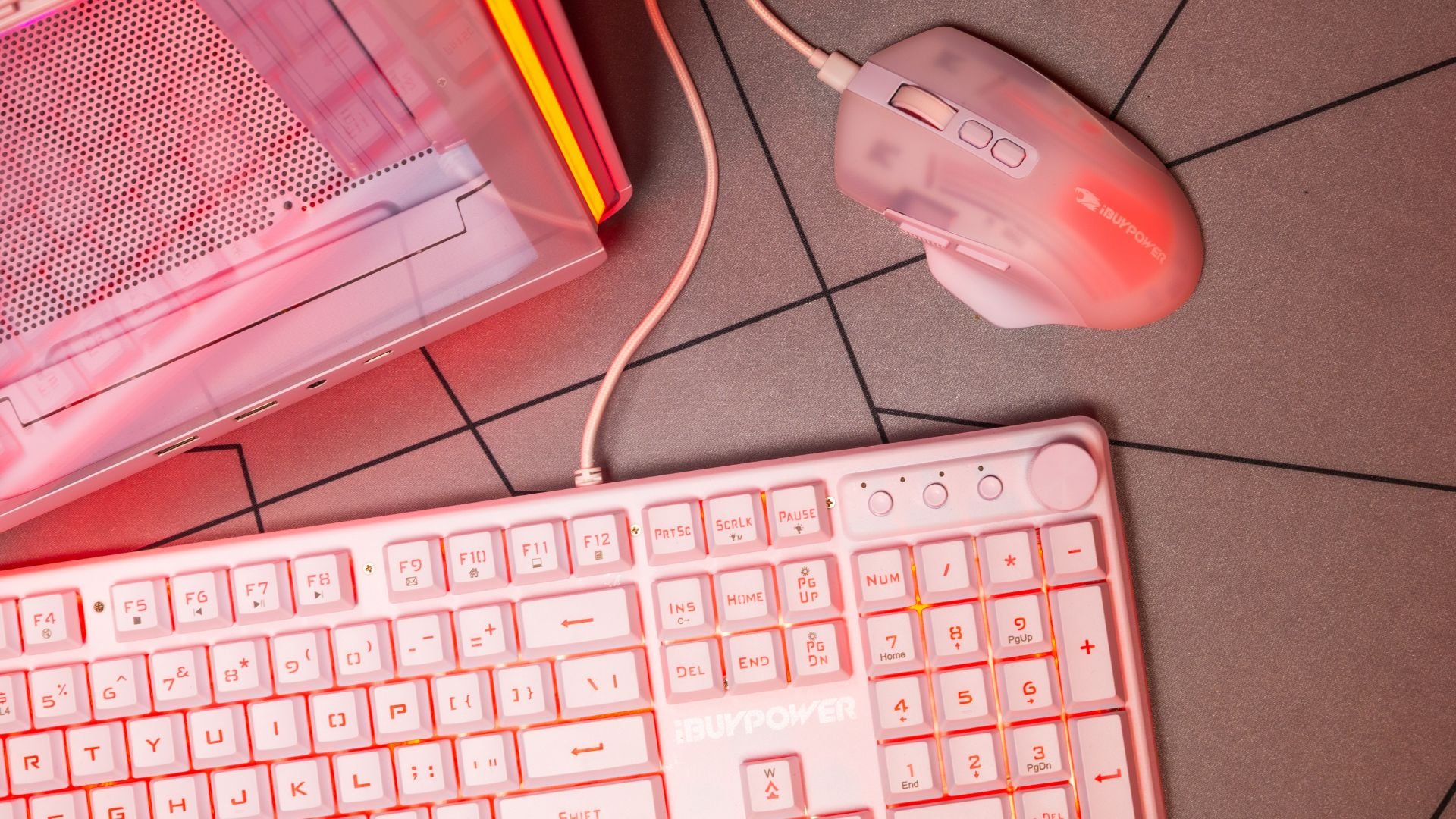
Quick Check #2: Try Keyboard Lighting Shortcut Keys
Many keyboards allow RGB lighting to be toggled directly from the keyboard using function keys. It’s surprisingly easy to turn the lighting off accidentally.
Some common shortcuts you can try are:
Fn + a function key (often F9–F12)
Fn + arrow keys to adjust brightness
Fn + a key with a light or sun icon
If brightness is set to zero, the keyboard may look unlit even though RGB is technically enabled.
How to Fix RGB Lights on Keyboard: Restart or Reinstall RGB Software
One of the most common answers to how to fix RGB lights on a keyboard is to restart or reinstall the manufacturer’s software.
RGB keyboards typically rely on dedicated software to control lighting profiles, brightness, and effects. If that software crashes or fails to launch at startup, the keyboard may default to no lighting.
Start by:
Closing the RGB software completely
Reopening it and checking if the lighting returns
Restart your PC to ensure the software launches correctly
If that doesn’t work, uninstall the software entirely and reinstall the latest version from the manufacturer’s website. Avoid using older installers saved on your system, as they may not support current firmware or Windows updates.
How to Fix RGB Lights on Keyboard: Update Keyboard and USB Drivers
Drivers that are outdated or corrupted can also cause the keyboard lighting to not continue working, especially after a Windows update.
To check drivers:
Open Device Manager
Locate the keyboard under “Keyboards” or “Human Interface Devices.”
Right-click and update the driver
If Windows reports that the driver is up to date but issues persist, uninstall the device and restart your PC. Windows will automatically reinstall the driver on reboot.
In some cases, RGB lighting depends on USB controller drivers rather than keyboard drivers specifically, so updating chipset and USB drivers from your motherboard manufacturer can help.
How to Fix RGB Lights on Keyboard: Watch for RGB Software Conflicts
Running multiple RGB programs at once can also cause lighting issues, as they might override or turn off each other’s settings.
Some of these conflicts might include:
Motherboard RGB software running alongside keyboard software
Third-party RGB sync tools controlling lighting globally
Old RGB software still installed from previous hardware
If your keyboard lighting stopped working after installing new RGB software, try disabling or uninstalling the newer program, then reboot.

How to Fix RGB Lights on Keyboard: Check Windows Power and USB Settings
Power-saving features in Windows can interfere with RGB lighting, especially on laptops or gaming PCs using aggressive power profiles.
For example, USB selective suspend lets Windows turn off USB ports to save power, causing RGB lights to shut off unexpectedly.
To deactivate this feature:
Open Power Options
Edit your active power plan
Navigate to USB settings
Disable USB selective suspend
Just changing this feature often fixes RGB lighting that turns off randomly or doesn’t power on at boot.
How to Fix RGB Lights on Keyboard: Check BIOS or UEFI Settings
Some motherboards control RGB lighting behavior at a system level, including whether lighting is enabled when the system is powered on.
Enter your BIOS or UEFI menu and look for:
RGB or LED control settings
USB power settings
ErP or deep sleep options
If USB power is disabled when the system is off or sleeping, RGB lighting may not initialize properly on startup.
How to Fix RGB Lights on Keyboard: Test the Keyboard on Another Device
If none of the above steps work, testing the keyboard on another computer is an important troubleshooting step.
If the RGB lights work on another system, the issue is software- or settings-related on your main PC. If the RGB lights still don’t work, the problem may be firmware or hardware-related
This test helps narrow down whether you’re dealing with a system issue or a keyboard issue.
How to Fix RGB Lights on Keyboard: Factory Reset
Many RGB keyboards support a hardware reset that clears profiles and restores default lighting behavior.
How to do the factory reset varies by brand but often involves:
Holding specific keys while plugging the keyboard in
Using a reset option in the RGB software
Holding Fn plus a designated reset key for several seconds
After resetting, reconnect the keyboard and reconfigure RGB settings from scratch.
How to Fix RGB Lights on Keyboard: Update Keyboard Firmware
Firmware updates can fix bugs that affect RGB lighting, especially on newer keyboards or after OS updates.
Check the manufacturer’s support page for:
Firmware updates specific to your keyboard model
Installation instructions (follow these carefully)
Interrupting a firmware update can cause serious issues, so ensure your system is stable before proceeding.
Why is my Keyboard Still Not Lighting Up?
If you’ve tried shortcuts, software reinstalls, driver updates, power settings, and firmware updates, the remaining possibility is hardware failure.
Signs of hardware-related RGB issues include:
Certain keys lighting up while others stay dark
Flickering LEDs that don’t respond to software
Lighting fails on multiple systems
At this point, check your warranty status or contact the manufacturer’s support team. Many brands offer replacements if RGB lighting fails within the warranty period.
Why is my Keyboard not Lighting Up: When it’s Time for a New Keyboard
When keyboard lighting is not working, it’s easy to assume something is broken, but most RGB issues are fixable.
If you’re still wondering how to fix RGB lights on your keyboard, following these steps will solve most problems without needing a replacement. And if the issue turns out to be hardware-related, iBUYPOWER offers a wide range of RGB keyboards for your custom PC.
FAQs
Why is my keyboard not lighting up even though it works?
If your keyboard doesn’t light up but it’s still functioning, it’s receiving enough power for typing but not enough for RGB lighting. Software issues, disabled shortcuts, or USB power settings are the most common causes.
Can RGB lighting stop working after a Windows update?
RGB lighting can stop working after a Windows update, as it can affect USB drivers, power settings, or background software permissions.
Does RGB lighting drain battery on wireless keyboards?
RGB lighting significantly increases power consumption, so if your wireless keyboard’s battery is low, RGB lighting may disable itself automatically to conserve power.
Do all keyboards require software for RGB lighting?
Not all keyboards require software for RGB lighting, as some support basic lighting controls, but more advanced effects, profiles, and syncing usually require manufacturer software.
To stay updated on all things iBUYPOWER, visit our deals page, our coupons page, or follow us on our socials
Instagram iBUYPOWER
Facebook iBUYPOWERPC
TikTok @iBUYPOWER
Reddit /r/iBUYPOWER
Discord iBUYPOWER