Knowing your motherboard model is one of the most important steps when upgrading or troubleshooting your gaming PC. Whether you want to install a new CPU or upgrade RAM, identifying your motherboard is essential for ensuring compatibility and preventing costly mistakes.
Why Your Motherboard Model Matters
Your motherboard is the central hub of your PC, so it needs to be compatible with all your PC components to function at even a basic level.
The model determines:
Motherboard and CPU compatibility (which processors you can install)
Supported RAM type and speed
GPU compatibility and expansion slots
Storage options (NVMe, SATA, PCIe lanes)
Upgrade potential for gaming or productivity
If you’re building or upgrading a PC motherboard for gaming, choosing compatible components is critical for stability and performance.
When Should You Check Your Motherboard Model?
Knowing how to check which motherboard you have is especially important when:
Upgrading your CPU or RAM
Installing a new GPU
Troubleshooting hardware issues
Updating BIOS or drivers
Planning a full system rebuild
Skipping this step can lead to incompatible parts and wasted time.
How to Check Which Motherboard I Have: Windows Option
If you’re using Windows, there are several quick ways to identify your motherboard without opening your PC.
Windows Option 1: Use Command Prompt
Command Prompt is one of the faster ways to check the motherboard model in Windows using a built-in command.
How to check the motherboard model with Command Prompt:
Press “Windows + R”
Type “cmd” and press “Enter”
Enter the following command: wmic baseboard get product, Manufacturer, version, serialnumber
After doing this, you should see:
Manufacturer (e.g., ASUS, MSI, Gigabyte)
Product name (your motherboard model)
Version and serial number
Windows Option 2: Use System Information Tool
Another way to check your motherboard model in Windows is to use the System Information Tool, a graphical tool that provides detailed system specs.
How to check the motherboard model with the System Information Tool:
Press Windows + R
Type msinfo32 and press Enter
Look for the BaseBoard Manufacturer or BaseBoard Product
This method is better if you prefer a visual interface over command-line tools.
Windows Option 3: Use DirectX Diagnostic Tool
While primarily used for graphics info, this tool can sometimes display motherboard details.
How to check the motherboard model with the DirectX Diagnostic Tool:
Press “Windows + R”
Type “dxdiag”
Check the “System Manufacturer” and “System Model”
For the most part, this method is less precise, but it can be useful in some cases.
How to Check Which Motherboard I Have: Third-Party Software
If you want more detailed system insights, third-party tools can provide a deeper breakdown of your hardware. Some popular tools include CPU-Z and HWInfo, which provide details such as the motherboard model, chipset information, BIOS version, and RAM configuration.
They’re especially useful when evaluating motherboard compatibility for upgrades.
How to Check Which Motherboard I Have: Without Software
If your system tools aren’t giving clear results, you can also physically check your motherboard.
No Software Option 1: Open Your PC Case
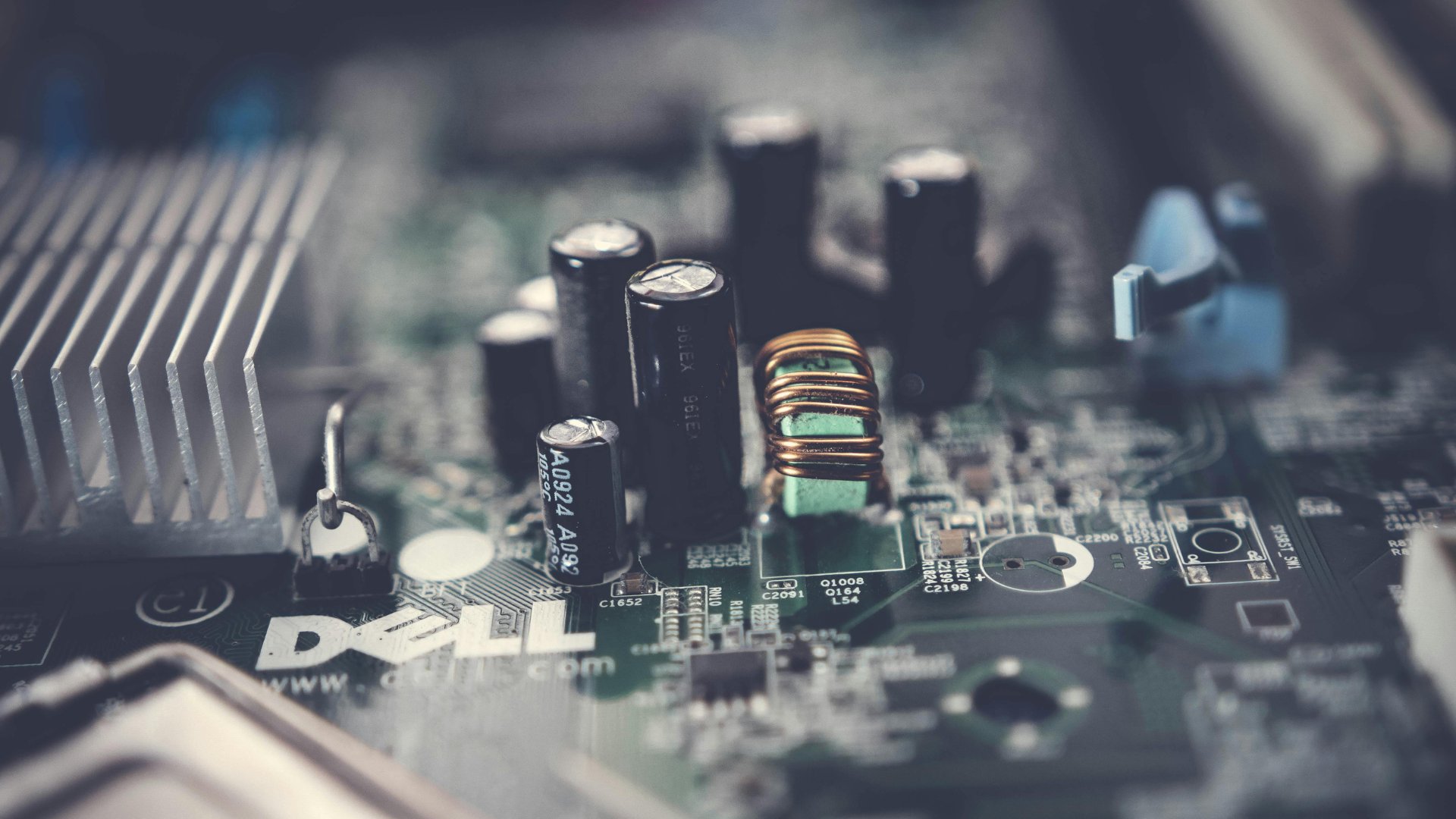
This method is pretty straightforward, but it can be difficult depending on where your motherboard is in your build. To check the motherboard model, just turn off your PC and unplug it before opening the case.
Once you find your motherboard, look for:
Model number printed directly on the board
Manufacturer branding (ASUS, MSI, Gigabyte, ASRock)
The model name is usually in a few places, such as near the CPU socket, between the PCIe slots, or around the RAM slots.
No Software Option 2: Check the Original Packaging or Receipt
If you built your PC or bought it prebuilt, your motherboard model may be on the packaging, the receipt, or the order confirmation emails.
No Software Option 3: Check BIOS/UEFI
You can also find motherboard details in your BIOS or UEFI firmware.
How to check the motherboard model using the BIOS/UEFI:
Restart your PC
Press DEL, F2, or F12 during boot (varies by manufacturer)
Look for system information on the main screen
This option is especially useful when your operating system isn’t accessible.
Understanding Motherboard Compatibility
Once you know your motherboard model, the next step is understanding what upgrades it supports.
CPU Compatibility: Not all CPUs work with every motherboard, so you’ll need to check the socket type (e.g., AM5, LGA 1700), supported CPU generations, and BIOS update requirements.
RAM Compatibility: Your motherboard determines the type of RAM you can use, the amount, and the speed. If you use incompatible RAM, it can result in system instability or failure to boot.
GPU and Expansion Compatibility: Most modern GPUs use PCIe slots, but differences in PCIe versions can affect performance. If you’re building a PC motherboard for gaming, make sure your board supports high-bandwidth PCIe lanes, adequate spacing for larger GPUs, along with cooling and airflow clearance.
Storage Compatibility: Modern motherboards often support ultra-fast SSDs, but availability depends on your model.
Common Issues When Identifying Which Motherboard You Have
Sometimes, identifying your motherboard isn’t straightforward.
Here are a few common challenges you might run into:
Missing or Generic Information: Prebuilt systems sometimes display generic motherboard names in system tools, so you may need to check the BIOS or inspect the motherboard physically.
BIOS Version Mismatch: Even if your motherboard supports a component, an outdated BIOS may prevent it from working properly. Always verify BIOS compatibility before upgrading.
OEM Motherboards: Some manufacturers use custom OEM motherboards that have limited upgrade options or restrict BIOS access. If you have an OEM system, research your exact model for compatibility details.
There are plenty of methods to figure out your motherboard model, so even if one method doesn’t work, you can always find another option to try.
The Best PC Motherboard for Gaming
Learning how to check the motherboard model is a foundational skill for upgrading components or troubleshooting performance issues. With simple tools like Command Prompt or System Information, you can quickly identify your motherboard and ensure proper motherboard compatibility for future upgrades.
Before making any hardware changes, always confirm:
Motherboard CPU compatibility
RAM support and speed limits
Expansion and storage options
Taking a few minutes to verify your motherboard can save you from costly mistakes so you can build a faster, more reliable system, especially if you optimize a PC motherboard for gaming from iBUYPOWER. Visit the deals page or our coupons page for the latest discounts on all our products. While we don’t offer an iBUYPOWER cashback program, you can still redeem your rewards points for extra savings at checkout. Act fast and secure your dream rig today!
To stay updated on all things iBUYPOWER follow us on our socials
Instagram iBUYPOWER
Facebook iBUYPOWERPC
TikTok @iBUYPOWER
Reddit /r/iBUYPOWER
Discord iBUYPOWER