Online gaming is more demanding than ever, from you’re grinding ranked matches to exploring open-world co-op. That means you need a fast, stable, and responsive connection. Even with a high-speed internet plan and a top-notch gaming PC, a poor router configuration can introduce lag, packet loss, and frustrating disconnects.
This guide walks you through optimizing your router settings step-by-step. From core network settings to advanced tweaks, here’s how to achieve optimal router settings for smooth, low-latency gameplay.
How do I Optimize my Router Settings for Gaming: Why it Matters
Your router is the central hub of your home network. It manages traffic between your devices and the internet, prioritizes data, and determines how efficiently packets are transmitted.
When you don’t have the optimal router settings:
Latency (ping) increases
Packet loss becomes more common
Bandwidth gets split inefficiently
Network congestion impacts gameplay
The right router settings for gaming ensure your connection stays consistent, no matter how many devices are online.
The Basics of How to Optimize Router Settings: Wired vs. Wireless
When you optimize router settings, it’s important to establish a strong foundation before diving into the settings and changing anything.
Use Ethernet Whenever Possible
A wired Ethernet connection is still your best best for gaming, as it offers lower latency and reduced interference, resulting in more consistent speeds.
If you’re serious about competitive gaming, plugging directly into your router is one of the easiest ways to improve performance.
Optimize Wi-Fi If You Must Use It
If Ethernet isn’t practical and you need to use Wi-Fi, use the 5 GHz band for faster speeds and lower latency. It’s also best that you stay close to the router and minimize physical obstructions to get the best speed.
How to Optimize Router Settings: Enable Quality of Service (QoS)
One of the most important steps to optimize router settings for gaming is enabling Quality of Service (QoS). QoS letss your router prioritize gaming traffic over other activities like streaming or downloads.
Other ways QoS helps are by:
Reducing lag spikes during heavy network usage
Ensuring consistent bandwidth allocation
Improving real-time responsiveness
If you want to enable QoS, then you need to:
Log in to your router settings (usually 192.168.1.1 or similar)
Find QoS settings
Prioritize your gaming device or gaming applications
Any household with multiple users needs QoS to maintain stability and optimize router settings.
How to Optimize Router Settings: Adjust Bandwidth and Traffic Prioritization
Some routers allow deeper traffic control beyond quality of service (QoS) if you want to further optimize router settings.
Two methods for this are:
Setting Device Priority: Assign your gaming PC or console as high priority.
Limiting Background Devices: Smart TVs, any streaming devices, downloads, or cloud backups can all impact bandwidth.
Adjusting these settings and limiting background devices ensures your gaming traffic isn’t competing with less time-sensitive data.
How to Optimize Router Settings: DNS Settings
Your Domain Name System (DNS) affects how quickly your system connects to game servers. Switching to a faster DNS can reduce connection delays and improve server response times.
Some recommended DNS options you can try are:
Google DNS: 8.8.8.8 / 8.8.4.4
Cloudflare DNS: 1.1.1.1 / 1.0.0.1
Updating your DNS is a quick win when you want to optimize router settings.

How to Optimize Router Settings: Enable Port Forwarding (When Needed)
Some online games require that you open specific ports for optimal performance. Opening these ports reduces NAT-related issues and improves connection stability, which help with matchmaking and voice chat.
However, only forward ports recommended by the game developer, as incorrect settings can create security risks.
How to Optimize Router Settings: Use UPnP for Simpler Setup
If manual port forwarding sounds complex, Universal Plug and Play (UPnP) can automate the process. UPnP automatically opens the required ports to simplify setup for multiple games and reduce connectivity issues.
Most modern routers support UPnP, and it’s a convenient option for most gamers.
How to Optimize Router Settings: Choose the Right Wi-Fi Channel
Wireless interference can significantly impact performance, so you need to optimize the channels to ensure it works.
If you’re doing this, make sure to:
Use less crowded channels (check via router tools or apps)
Avoid overlap with nearby networks
Use auto channel selection if available
For 5 GHz networks, channel congestion is typically less of an issue, but still worth checking.
How to Optimize Router Settings: Enable MU-MIMO and Beamforming
Modern routers include advanced technologies designed to improve efficiency. Enabling MU-MIMO (Multi-User, Multiple Input, Multiple Output) allows for simultaneous communication with multiple devices and reduces bottlenecks in busy networks.
There is also beamforming, which directs Wi-Fi signals toward your device to improve signal strength and stability. Enabling these features helps maintain consistent performance, especially in multi-device households.
How to Optimize Router Settings: Keep Firmware Updated
On a regular basis, router manufacturers will release updates to improve performance and security by fixing bugs. If you have outdated firmware, it can lead to instability and degraded performance.
All that needs to be done here is to check for updates in your router settings and (if possible) enable automatic updates.
How to Optimize Router Settings: Reduce Network Congestion
Even with optimal router settings, too many active devices can impact gaming performance.
In that case, the best thing you can do is:
Pause downloads while gaming
Limit background apps using bandwidth
Schedule updates outside gaming hours
Network congestion is one of the most common causes of lag. Luckily, that also makes it one of the easiest to fix.
How to Optimize Router Settings: Router Placement
Your router’s physical location matters more than you might think, as physical obstructions and how far you are from it can lead to a weaker signal.
When placing your router, make sure it is:
Centrally located in your home
Elevated (avoid floors or enclosed spaces)
Keep it away from walls, metal objects, and electronics
Better placement improves signal strength and reduces latency for wireless gaming.
How to Optimize Router Settings: Getting a Router Upgrade
Sometimes, the issue isn’t your settings. The actual issue is your hardware.
If you notice any of the signs below, it might be time to get a new router:
Frequent disconnects
Inconsistent speeds
Poor performance with multiple devices
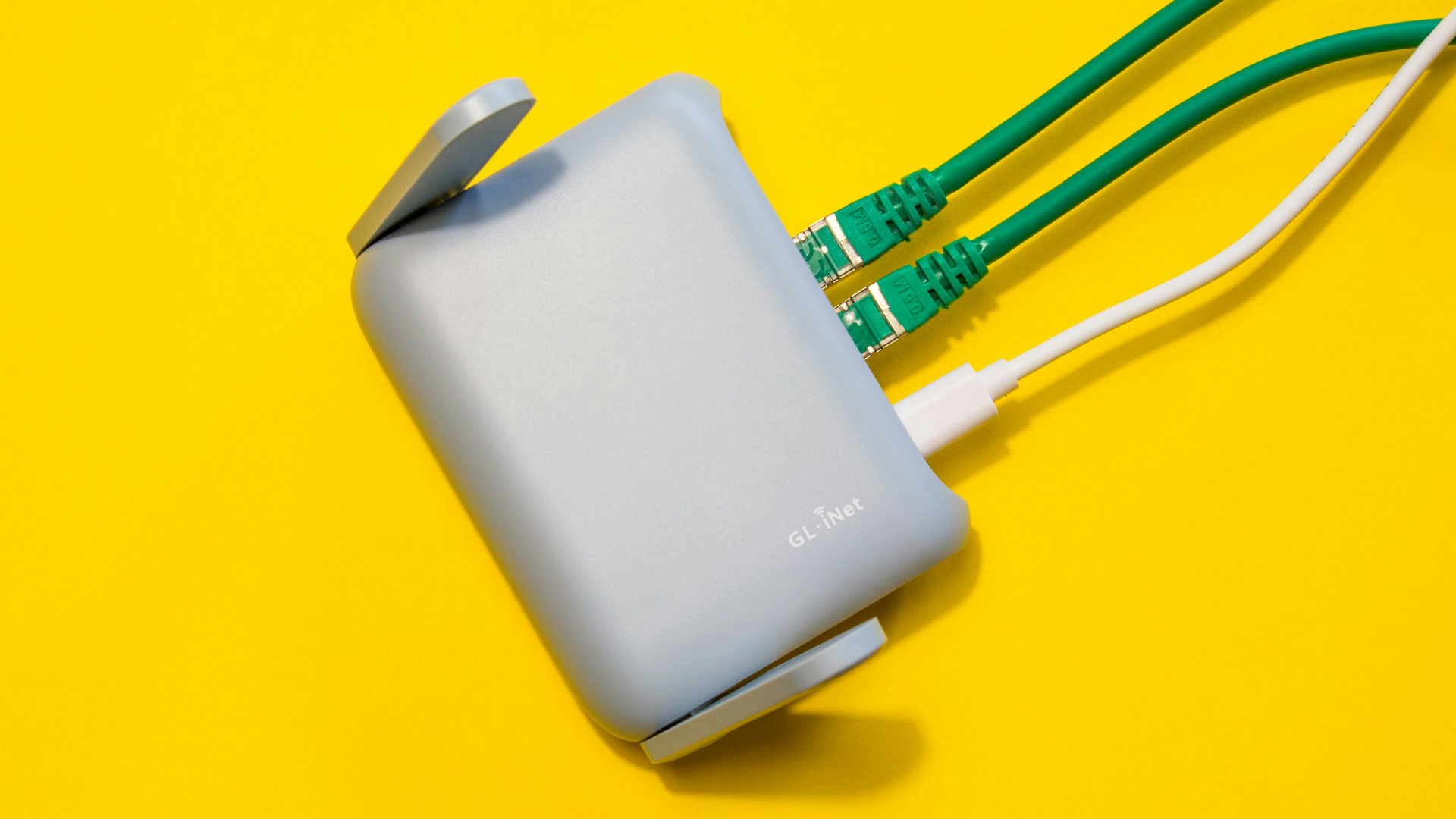
When getting a new router, get one with Wi-Fi 6 or later, strong quality of service (QoS) features, and high throughput.
How to Optimize Router Settings: Building Your Gaming Setup
Optimizing your router is only part of the equation. Your hardware also plays a major role in performance.
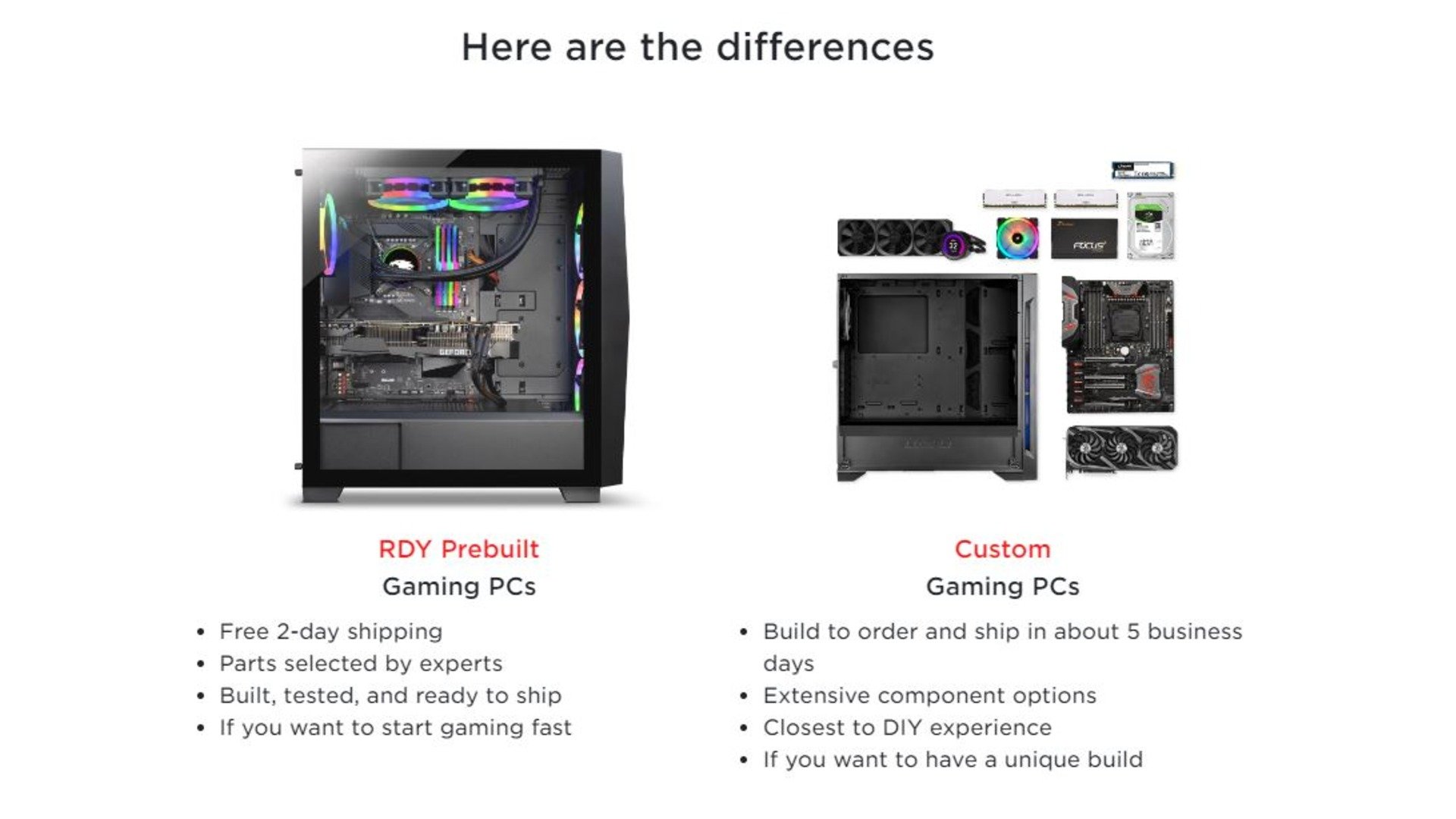
If you’re looking to eliminate bottlenecks, consider upgrading to a high-performance system from iBUYPOWER or exploring prebuilt gaming PCs designed for competitive play.
Want a custom solution? Use the PC Builder to create a system tailored to your setup.
For more optimization tips, visit the iBUYPOWER blog or browse helpful guides in our technical support resources section.
How to Optimize Router Settings for Gaming
Getting the best router settings for gaming doesn’t require advanced networking knowledge. All you need to do is just make a few targeted adjustments. With the right setup, you’ll experience lower latency, fewer interruptions, and smoother gameplay. Visit our deals page or our coupons page to find the latest discounts on all our products.
To stay updated on all things iBUYPOWER, follow us on our socials
Instagram iBUYPOWER
Facebook iBUYPOWERPC
TikTok @iBUYPOWER
Reddit /r/iBUYPOWER
Discord iBUYPOWER